Showing posts with label E-MAIL. Show all posts

Extra Emoji brings over 1000 emoticons to Gmail

A picture’s worth a thousand words. And it gets better when you have more than a thousand to choose from! With Gmail’s new Extra Emoji Icons, you can add more than 1000 emoticons in your emails.

Good news - Now you get a chance to express better without words.

Bad news - Now you spend ages wondering which emoticon to use when and where!

All these extra emoticons come from the so called “secret underground labs” of some top Japanese mobile carriers. Of course, Gmail has taken the permission to use them.

The icons are divided into 13 different categories, the first two being the standard ones from Gmail. Some of the new stuff includes animals, various road signs, national flags, and animated icons.


http://i.i.com.com/cnwk.1d/i/bto/20090430/Gmail-emoticons.png

http://www.blog.arun-prabha.com/wp-content/uploads/2009/05/emoji.jpg

Enable your extra Emoji icons:

Just follow the simple steps below:

  1. Login to your Gmail account
  2. Go to the ‘Labs’ tab under Settings
  3. Scroll down to the ‘Extra Emoji’ option
  4. Check the ‘Enable’ box
  5. Hit ‘Save Changes’ button

LINK TO THIS POST :


Use GMail offline with Google Gears

Gmail has introduced its latest Labs feature called offline Gmail to enable e-mail access even when you are not connected to the Internet.

While this might sound uber geeky, the concept is simple enough when you actually use it. Oh, and the “offline” mode is already available in a simpler form if you happen to use Outlook or any other email client with Gmail POP access.

1. Go to this link and install Google Gears

2. After installation , restart your web browser


3. Go to Gmail Account , click on Settings , then Labs and enable offline

4.Download your email messages onto computer. In gmail account click Offline

5.After this will appear window, click Next


When Gears security warning appear click Lllow

Choose place where you want to create Gmail shortcut, that allows you to start Gmail while you are offline

Wait until your mail downloaded on your computer.

Now, you can use your gmail offline. When you disconnect, offline mode will activate and you´ll have access to gmail.


LINK TO THIS POST :


e-mail tracking

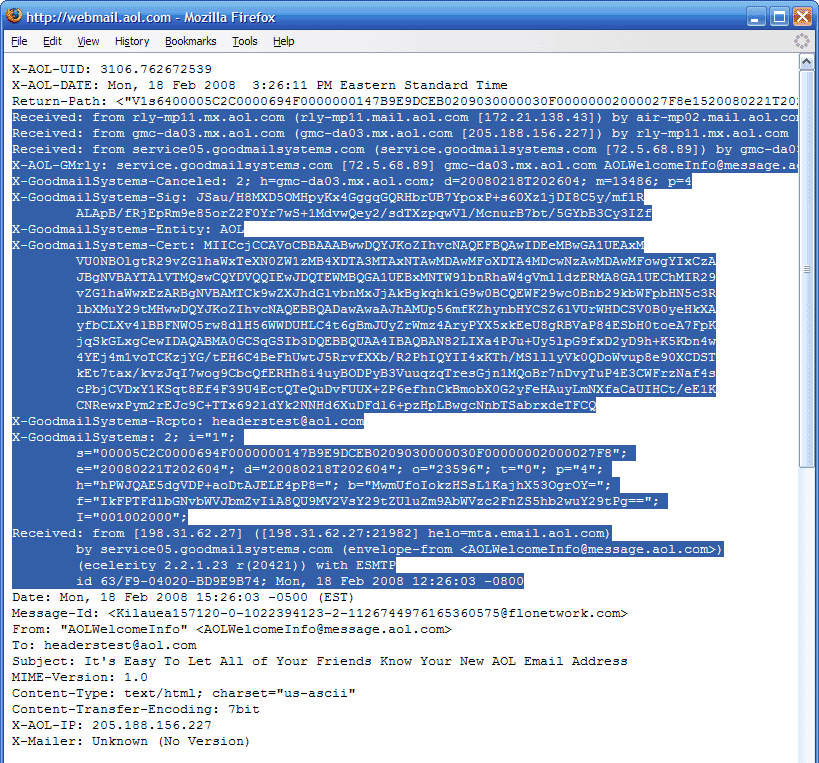
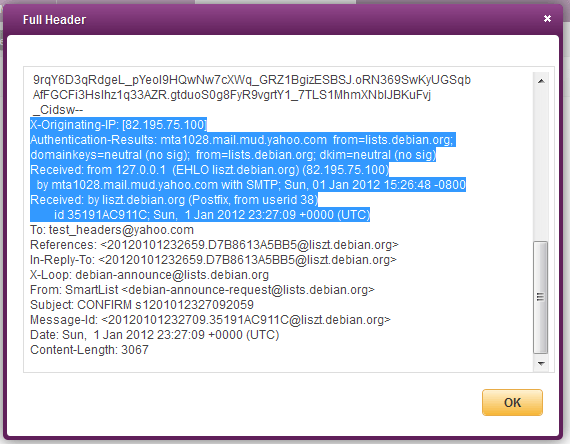
How to trace the e-mail header in different emails


When you recieve an email, you receive more than just the message. The email comes with headers that carry important information that can tell where the email was sent from and possibly who sent it. For that, you would need to find the IP address of the sender. The tutorial below can help you find the IP address of the sender. Note that this will not work if the sender uses anonymous proxy servers.


First of all, the IP address is generally found in the headers enclosed beween square brackets, for instance, [129.130.1.1]

Finding IP address in Gmail

1. Log into your Gmail account with your username and password.
2. Open the mail.
3. To display the email headers,

* Click on the inverted triangle beside Reply. Select Show Orginal.


4. manually find the IP address,as below


5. Look for Received: from followed by the IP address between square brackets [ ].

Received: from [69.138.30.1] by web4587.mail.***.yahoo.com


6. If you find more than one Received: from patterns, select the last one.


7. Track the IP address of the sender


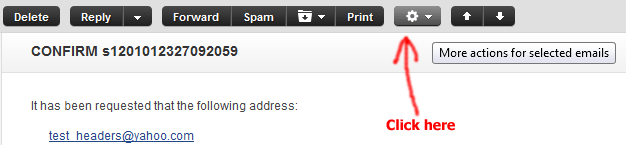
Yahoo Mail


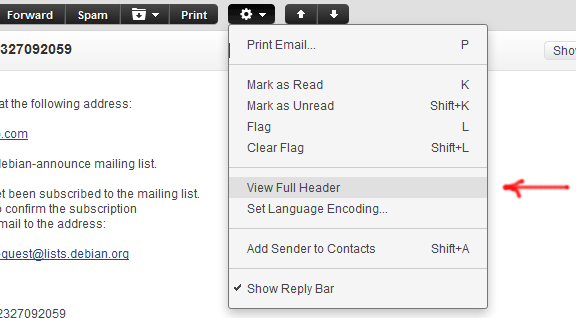
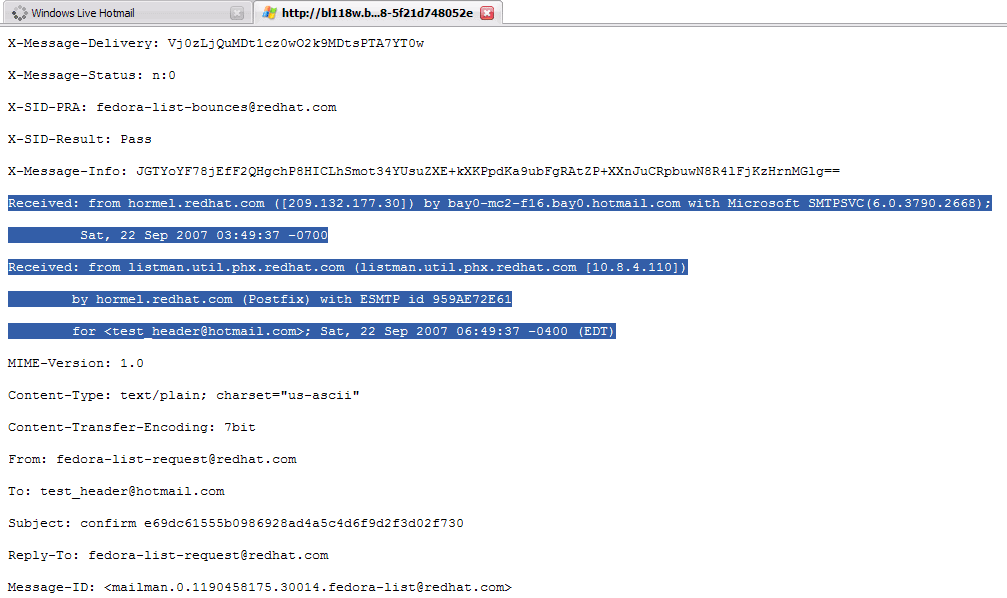
Hotmail


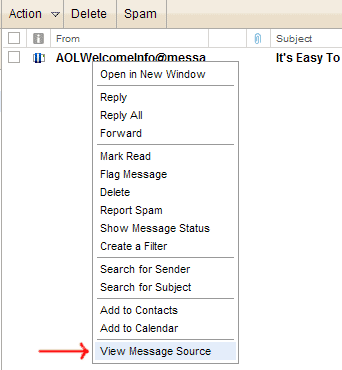
AOL


LINK TO THIS POST :


RECENT POSTS

If you like this blog,then link back to me.
This is what you will see.


Followers

Cyber Crunch : A Tech Blog © 2009 Template by TechnoTrends.

Feedbase

Please Register in TechnoTrends and post articles