Showing posts with label MICROSOFT. Show all posts

Microsoft HD Webcam


Microsoft's LifeCam Cinema Webcam capable of 720p video at 30fps.
This also include 4x digital zoom, and a built-in noise-cancelling microphone.
It will be compatible with Windows 7, Vista and XP.
Thewebcam is made from Aluminum and has a universal stand for desktop and monitor/laptop mounting.


LINK TO THIS POST :


Change The Default Location For Installing Apps

export registry


As the size of hardrives increase, more people are using partitions to seperate and store groups of files.

XP uses the C:\Program Files directory as the default base directory into which new programs are installed. However, you can change the default installation drive and/ or directory by using a Registry hack.

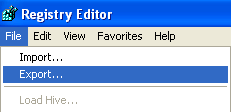
Firstly, you’re going to want to make a backup of your registry before making any changes. You can back it up by opening the registry editor and choosing File and then Export.

export registry


Run the Registry Editor (regedit)and go to

HKEY_LOCAL_MACHINE\SOFTWARE\Microsoft\Windows\CurrentVersion


By default,this value will be C:\Program Files. Edit the value to any valid drive or folder and XP will use that new location as the default installation directory for new programs.

Now look for a key in the right panel called ProgramFilesDir. You should see that the value is C:\Program Files.

programfilesdir


Now you can change the path where ever you like to install the programs by default.


LINK TO THIS POST :


Some Hidden things in Windows XP


INSTALLER MUSIC :
Start>run>"c:\\windows\system32\oobe\images\title.wma"
Hit enter.

HIBERNATE :
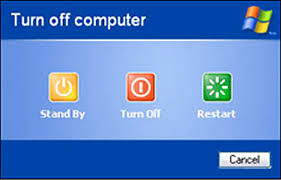
Start>turn off computer>press shift key to change the "Stand By" button to "hibernate"

HIDDEN DEVICES :
Control pannel >system>hardware>device manager>select "view" and show hidden device

CHARACTER MAP :
Start>run>"charmap.exe"
Hit enter.

CLIPBOARD VIEWERS :
start>run>"clipbrd.exe"
Hit enter.

Dr. WATSON :
Start>run>"drwtsn32.exe"
Hit enter.

IEXPREE WIZARD :
Start>run>"iexpress.exe"
Hit enter.

WINDOW MEDIA PLAYER 5.1 :
Start>run>"mplay32.exe"
Hit enter.

ODBC DATA SOURCE ADMINIS. :
Start>run>"odbcad32.exe"
Hit enter.

OBJECT PACKAGER :
Start>run>"packager.exe"
Hit enter.

SYSTEM MONITOR :
Start>run>"perfmon.exe"
Hit enter.

NETWORK SHARE FOLDER WIZARD :
Start>run>"shrpuwb.exe"
Hit enter.

FILE SIGNATURE VERI. TOOL :
Start>run>"sigverif.exe"
Hit enter.

SYS CONFIGURATION EDITOR :
Start>run>"sysedit.exe"
Hit enter.

DRIVER VERIFIER MANAGER :
Start>run>"verifier.exe"
Hit enter.

WINDOWS 4 WORKGROUP CHAT :
Start>run>"winchat.exe"
Hit enter.

LINK TO THIS POST :


Use GMail offline with Google Gears

Gmail has introduced its latest Labs feature called offline Gmail to enable e-mail access even when you are not connected to the Internet.

While this might sound uber geeky, the concept is simple enough when you actually use it. Oh, and the “offline” mode is already available in a simpler form if you happen to use Outlook or any other email client with Gmail POP access.

1. Go to this link and install Google Gears

2. After installation , restart your web browser


3. Go to Gmail Account , click on Settings , then Labs and enable offline

4.Download your email messages onto computer. In gmail account click Offline

5.After this will appear window, click Next


When Gears security warning appear click Lllow

Choose place where you want to create Gmail shortcut, that allows you to start Gmail while you are offline

Wait until your mail downloaded on your computer.

Now, you can use your gmail offline. When you disconnect, offline mode will activate and you´ll have access to gmail.


LINK TO THIS POST :


e-mail tracking

How to trace the e-mail header in different emails


When you recieve an email, you receive more than just the message. The email comes with headers that carry important information that can tell where the email was sent from and possibly who sent it. For that, you would need to find the IP address of the sender. The tutorial below can help you find the IP address of the sender. Note that this will not work if the sender uses anonymous proxy servers.


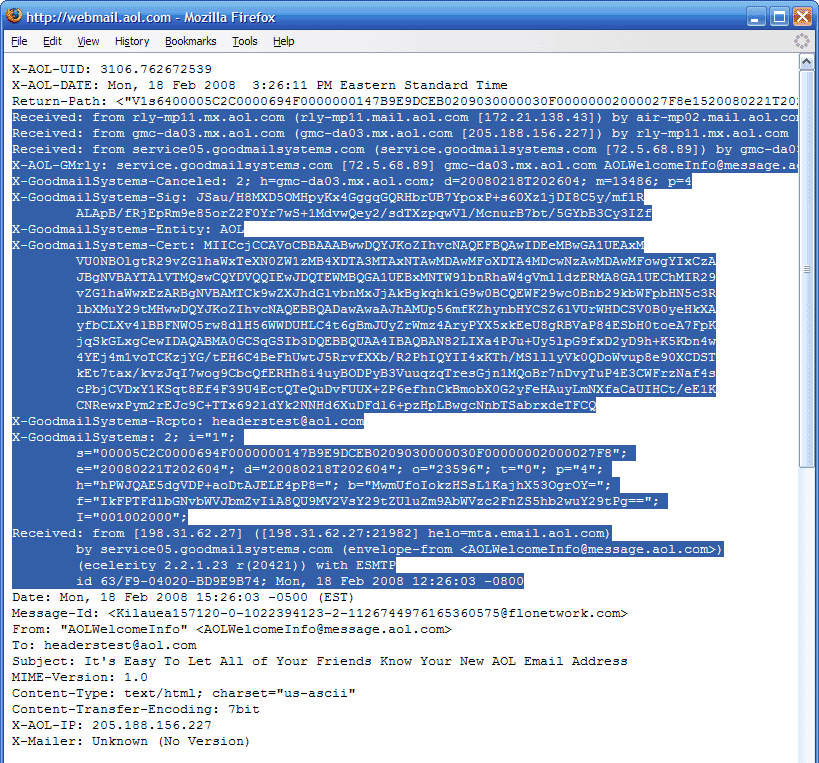
First of all, the IP address is generally found in the headers enclosed beween square brackets, for instance, [129.130.1.1]

Finding IP address in Gmail

1. Log into your Gmail account with your username and password.
2. Open the mail.
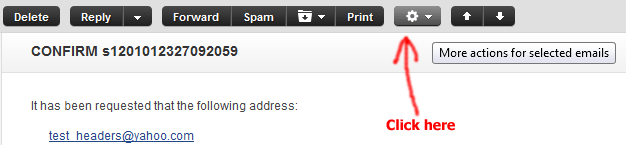
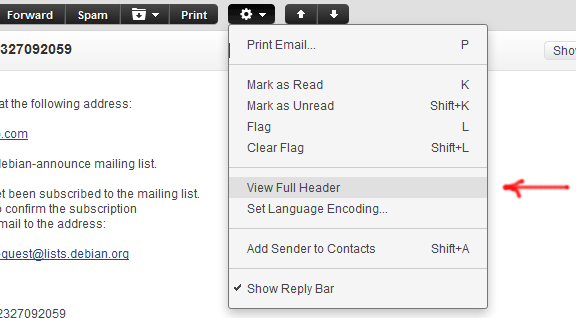
3. To display the email headers,

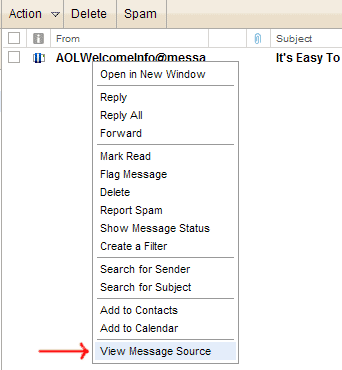
* Click on the inverted triangle beside Reply. Select Show Orginal.


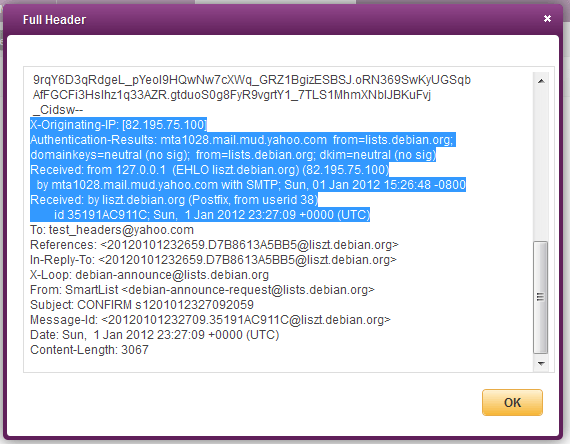
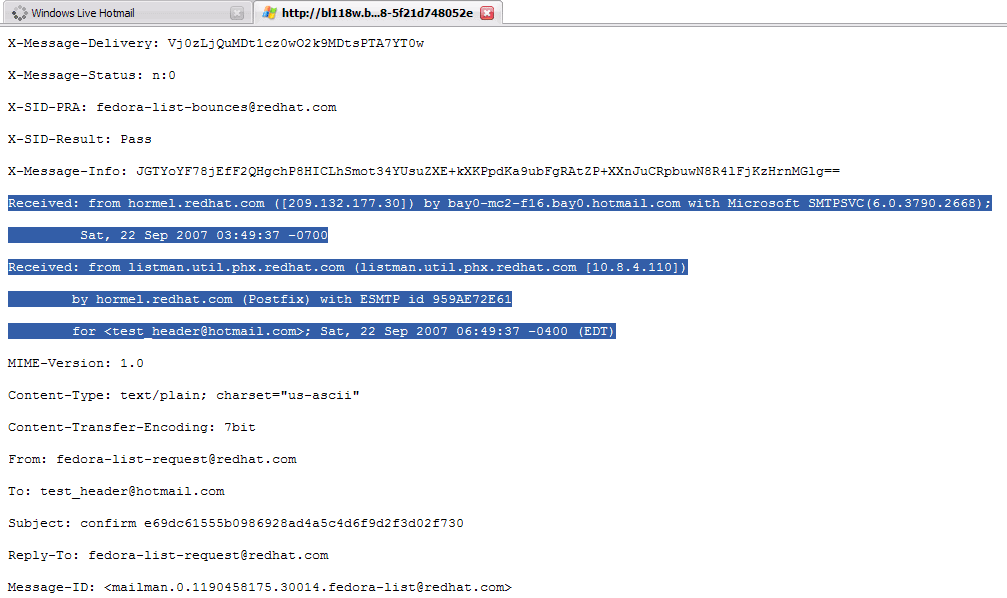
4. manually find the IP address,as below


5. Look for Received: from followed by the IP address between square brackets [ ].

Received: from [69.138.30.1] by web4587.mail.***.yahoo.com


6. If you find more than one Received: from patterns, select the last one.


7. Track the IP address of the sender


Yahoo Mail


Hotmail


AOL


LINK TO THIS POST :


Modify or Edit The Blog Posts

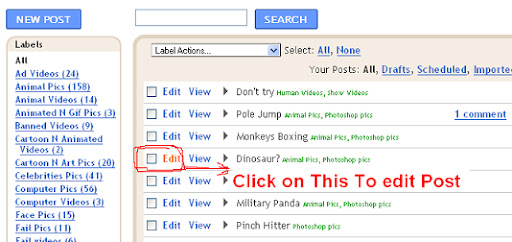
1.Login into  blogger.com 

2.Click on Edit Posts showing below image...


3.Select the post which one you want edit ....


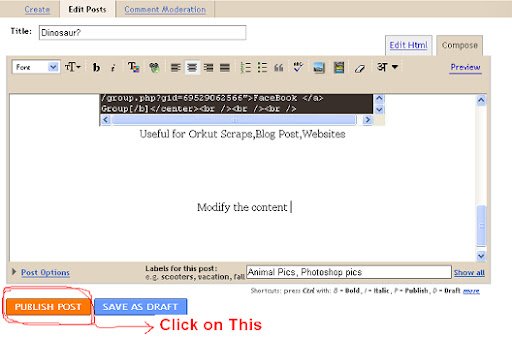
4.Edit the post what ever you want and then click on "PUBLISH POST" 


LINK TO THIS POST :


Microsoft Lifecam VX-2000 Coming in June


Microsoft Hardware today also announced a new LifeCam product: the LifeCam VX-2000 (pictured right). Microsoft says it is an "easy-to-use webcam with a built-in microphone and vivid VGA video" and that it will retail for $30. The VX-2000 also features 1.3MP still photography and can auto-adjust for low-light conditions. The new product brings Microsoft's total number of LifeCams to 10, priced from $30 to $100. Here is a quick feature list for the new product:
  • VGA Video Sensor: enjoy clear VGA video and sharp 1.3 megapixel (interpolated) still photos. Camera auto-adjusts for low-light conditions for the best video possible.
  • 1.3 megapixel still photos (interpolated): take 1.3 megapixel photos to share with friends and family.
  • Built-In Microphone: automatically picks up your voice with remarkable clarity.
  • Up To 30 Frames Per Second: capture up to 30 frames per second, which means the video images you see are smooth and seamless.
  • Easy to use: set up in minutes with Plug and Play.
  • Video Effects: discover a fun way to express yourself with these entertaining video effects built into the LifeCam dashboard.
  • Windows Live Video Messages: send a video message to your contacts anywhere, anytime - even if they are not online. Send and receive video messages directly from your desktop using the exclusive LifeCam Video Message gadget.
  • Optimized for Windows Live Messenger: lets you chat online via text, voice and video. Combine the features of Windows Live with the LifeCam VX-2000 for an unforgettable experience.

The LifeCam VX-2000 will be available in June, and will come with Microsoft's worldwide three-year limited hardware warranty.


LINK TO THIS POST :


IE8 MUI packs for Windows XP and Server 2003 arrived


Microsoft released Internet Explorer 8 Multilingual User Interface (MUI) packs for Windows XP SP2/SP3 and Windows Server 2003 SP2. If you already have a MUI pack installed for Windows XP or Windows Server 2003, you'll need to install the English version of Internet Explorer 8 and then install the corresponding Internet Explorer 8 MUI pack. MUIs allow each user to select his or her own preferred display language on a single system. There are four packs available on the Microsoft Download Center, one for each OS and architecture, and for the following languages:


  • Windows XP 32-bit (32.1MB) and Windows Server 2003 32-bit (32.1MB): Arabic, Chinese (Traditional), Chinese (Hong Kong), Czech, Danish, Dutch, Finnish, French, German, Greek, Hebrew, Hungarian, Italian, Japanese, Korean, Norwegian, Polish, Portuguese (Portugal), Portuguese (Brazil), Russian, Spanish, Swedish, Turkish, Bulgarian, Croatian, Estonian, Latvian, Lithuanian, Romanian, Slovenian, Slovakian, and Thai


  • IE8 was released in March and our thoughts were that the release was a good one, but that the Internet Explorer team still had a lot of hard work ahead of them. Some of that work means minor releases like the one today, and others mean starting work on IE9.


LINK TO THIS POST :


How To Install Windows 7 From A USB Drive


* Find a standard 4GB USB Drive and plug it into your machine
* Click Start in your enter 'cmd' in the run field. Once cmd is open type in 'diskpart' and a new window will open

In the new diskpart window type:


* 'list disk' : This lists all the disk drives attached to your machine
* Look for your USB drive and note the number and then type: 'select disk #', where '#' is your USB disk number
* then type 'clean'
* then type 'create partition primary'
* then 'select partition 1'
* then 'active'
* then 'format fs=fat32 quick'


Once you've finished these steps you then need to copy your Windows 7 files to the USB. To do this you have to mount your Windows 7 ISO as a virtual DVD. Doing this is easy:


* Install Magicdisk -

* once installed, right-click on MagicDisk in your system tray click on 'Virtual CD/DVD-Rom', select your DVD drive
* then 'Mount' and in the dialog window that opens up, select your Windows 7 ISO
* Now in windows Explorer, click on your DVD drive and you should see all the Windows 7 Files. All you have to do now is copy and paste all the files to your USB key and you have a Windows 7 USB Installation Stick!
* Install the stick in the PC you want to install Windows 7 on and boot up. Remember to change your bios to allow booting from USB


LINK TO THIS POST :


Removing the Shortcut arrow from Desktop Icons


Goto Start then Run and Enter regedit. Navigate to


HKEY_CLASSES_ ROOT > lnkfile


Delete the IsShortcut registry value. You may need to restart Windows XP.


LINK TO THIS POST :


Restarting Windows without Restarting the Computer


This one is again is. When you cl!ck on the SHUTDOWN button, make sure to simultaneous press SHIFT Button. If you hold the Shift key down while *** on SHUTDOWN button, you computer would restart without restarting the Computer. This is equivalent to term "HOT REBOOT".

Stopping XP from displaying unread messages count on Welcome Screen:
To stop XP from displaying count of unread messages, Open registry and navigate to

[HKEY_CURRENT_ USER\Software\ Microsoft\Windows\CurrentVersion\UnreadMail]

and look for the data key "MessageExpiryDays" . If you do not see this key, create one DWORD key by the name "MessageExpiryDays" . Setting its value to 0 would stop Windows XP from displaying the count of unread messages.


LINK TO THIS POST :


Cool Gadgets(Keyboards)

Take a look of this keyboards......

1) Virtual keyboard


2) On Screen Keyboard


3) Folded Keyboard


4) One-Hand Keyboard


5) Weird Keyboard (2 parts)


6) Customizable Keyboard


LINK TO THIS POST :


How to rename recycle bin?


1. Open Run box from Start menu or use shortcut " windows key + r "

2. Type " regedit " and press enter.

3. Then a window named " Registry Editor " opens.

4. Go to My computer\HKEY-CURRENT_USER\Software in the left hand side

5.

a) Now if you have installed " Google Desktop " follow the following instructions

- Go to Google\Google Desktop\Localized in the left hand side

- Go to " Recycle Bin " in the right hand side and right click on it and choose the option " Modify "

In the pop up window, change the value data to your desired name and that will be the new name of the Recycle Bin.

b) If you haven't installed Google Desktop, then follow the following steps

- Go to Microsoft\Windows\ShellNoRoam\MUICache in the left hand side after going to
My computer\HKEY-CURRENT_USER\Software

- go to the key " @c:\windows\system32\shell32.dll,-8964 " in the right side and has a name ' recycle bin ' right click on it and choose the option ' Modify '.

- In the pop up window, change the value data to your desired name and that will be the new name of the Recycle Bin.

6. Refresh the desktop and you will see the new name of the Recycle Bin.


LINK TO THIS POST :


Remove recycle bin on the desktop


1. Click on Start menu and then on "Run".

2. In the dialog box type: gpedit.msc

3. On the right pane under User Configuration expand "Administrative Templates"

4. In the expanded list click on the "Desktop" option

5. On the left pane find "Remove Recycle Bin icon from desktop" and double click on it

6. In the Properties window check "Enabled"

7. Apply >> OK

8. Refresh your Desktop and ... no more Recycle Bin

LINK TO THIS POST :


RECENT POSTS

If you like this blog,then link back to me.
This is what you will see.


Followers

Cyber Crunch : A Tech Blog © 2009 Template by TechnoTrends.

Feedbase

Please Register in TechnoTrends and post articles